
How to Put Notes on Your iPhone Lock Screen | 2 Easy Ways
Sticky Notes A notepad app for sticky notes on your Home Screen
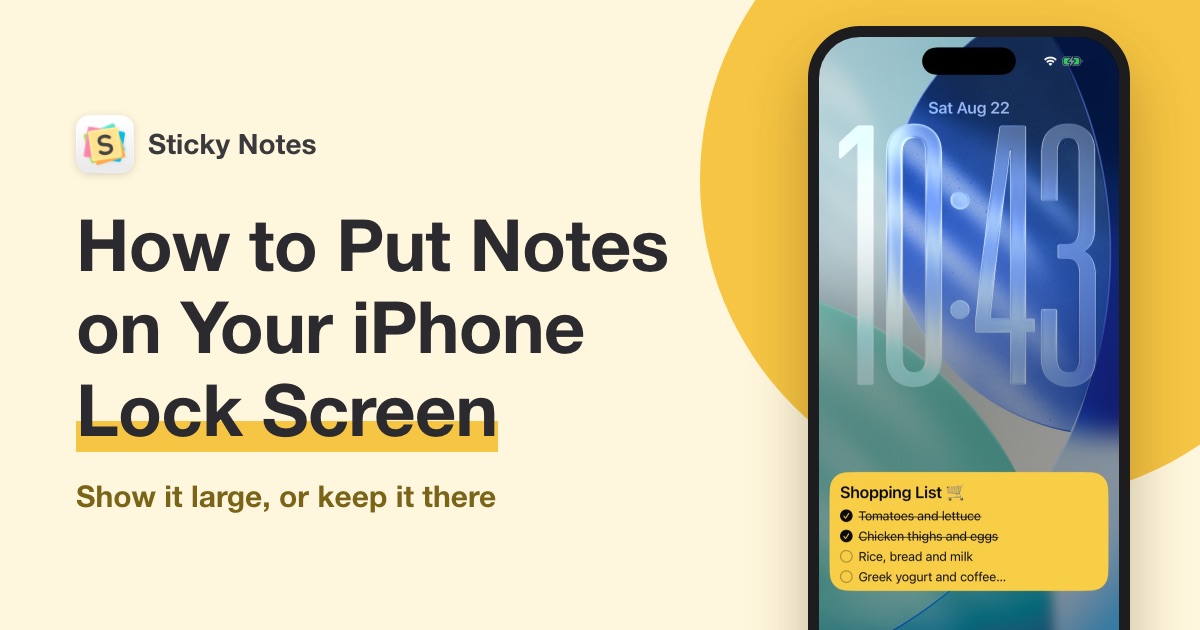
Put a note on your iPhone Lock Screen, and you can read it just by waking your phone, without unlocking it. At the store, you can check your shopping list without opening an app and looking for the note.
To put notes on your iPhone Lock Screen, use the sticky note app "Sticky Notes." Sticky Notes is a free app that lets you put notes on your Home Screen and Lock Screen, just like sticky notes. There are two ways to show a note, and both take only a few minutes, from installing the app.
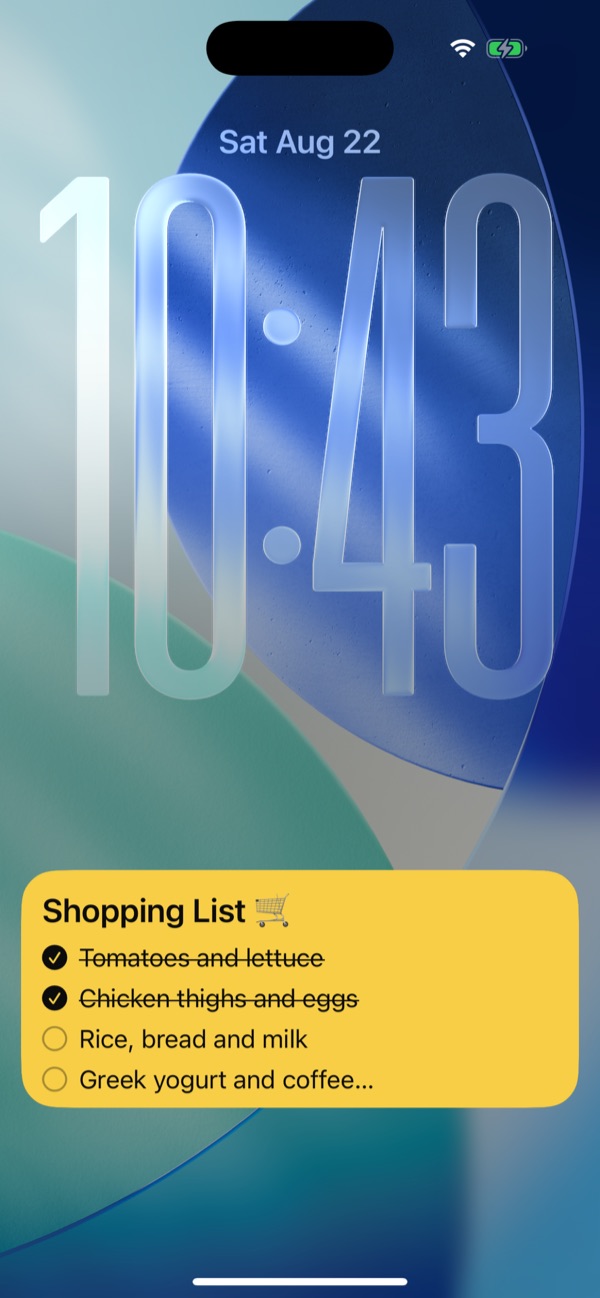
What you can do with notes on your Lock Screen
You see your Lock Screen every time you check the time or your notifications. Here are some notes that are handy to keep there:
- Shopping list — Wake your iPhone at the store to see what to buy. Make it a checklist, and you can check items off right on the Lock Screen
- Packing list for a trip — Check it before you leave. Show it only until you head out
- Goals or a reminder to yourself — Keep a short line like "Walk 30 minutes a day" where you'll always see it
- Today's plans — Write down times and places, and check them without unlocking your phone
2 ways to show notes on your iPhone Lock Screen
Sticky Notes gives you two ways to show a note on your Lock Screen.
| "Show on Lock Screen" | Lock Screen widget | |
|---|---|---|
| How it looks | Large, near the bottom of the screen | In the small area below the time |
| How long it stays | Up to 8 hours (an iOS limit) | Until you remove it |
| Check items on the Lock Screen | Yes | No (tapping opens the app) |
| Best for | Notes you only need for now, like a shopping or packing list | Short notes you see every day, like a goal |
If you're not sure, use "Show on Lock Screen" for notes you only need for a while, and the widget for notes you want to see every day.
How to put a note on your iPhone Lock Screen
Step 1: Install the Sticky Notes app
Open the App Store with the link below and install the Sticky Notes app.
 Sticky NotesFree on the App Store
See how to install the app
- Tap here to open the Sticky Notes page on the App Store
- Tap "Get." If a confirmation appears, follow the instructions on the screen
- When the installation is done, tap "Open" to launch the app
On the App Store, the app appears as "Sticky Notes: Notepad Widget."
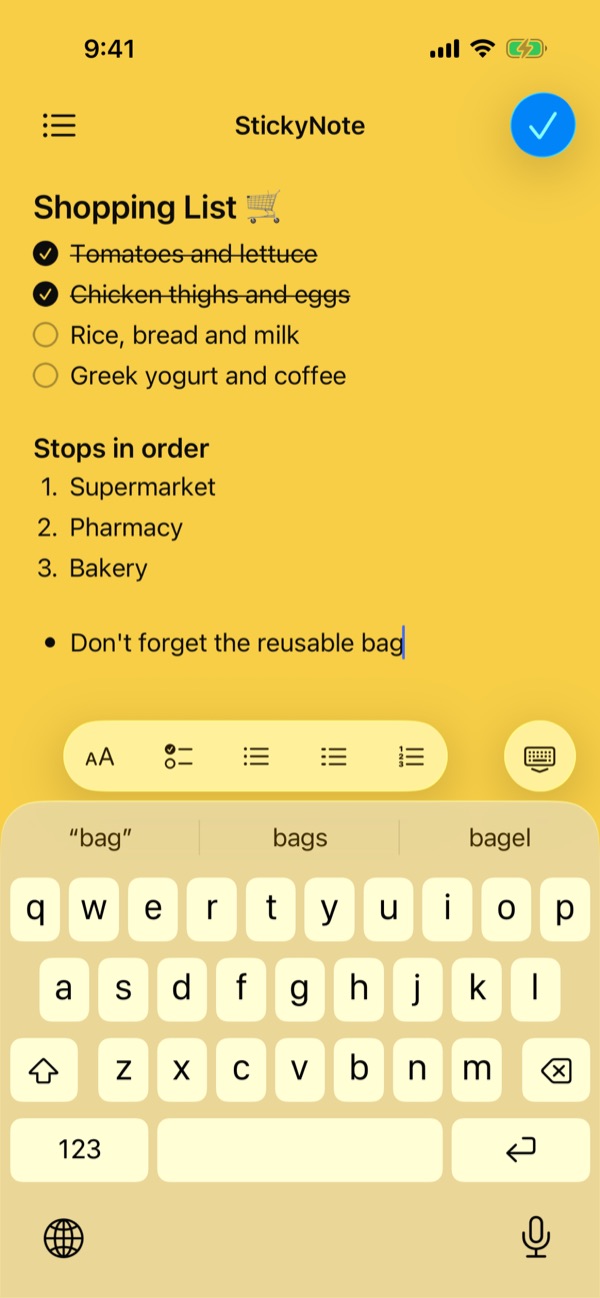
Step 2: Open the app and write a note
When you open Sticky Notes, a note is already created for you and appears on the screen. Write what you want to show on your Lock Screen.
For a shopping list, tap the checklist button above the keyboard to make it a checklist. Then you can check items off right on the Lock Screen.
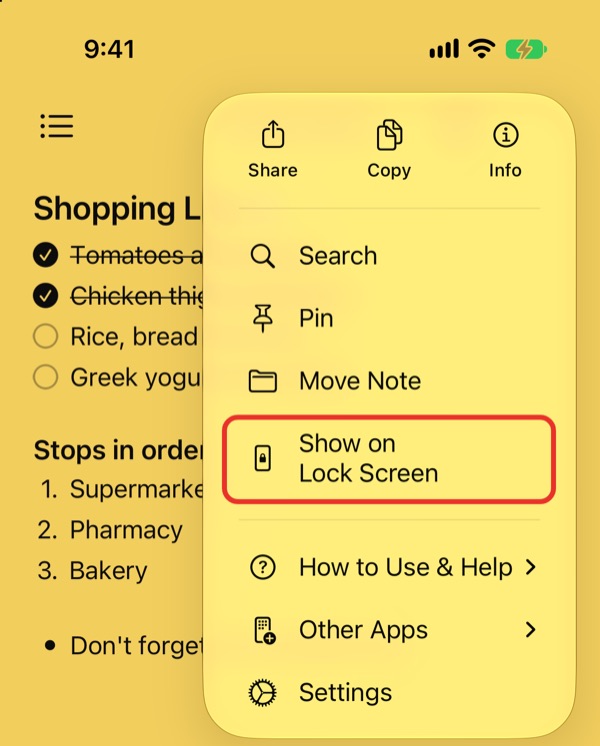
Step 3: Choose "Show on Lock Screen"
- Tap the "…" button in the top-right corner of the note
- Choose "Show on Lock Screen"
- Lock your iPhone, then wake the screen
Your note now appears large on your Lock Screen.
How to remove a note from the Lock Screen
- Open the note that's on your Lock Screen in Sticky Notes
- Tap the "…" button in the top-right corner, then choose "Remove from Lock Screen"
If you don't remove it, it goes away on its own after up to 8 hours, because of an iOS limit.
Keep a note on your Lock Screen with a widget
For a note you want to keep on your Lock Screen all the time, add it as a Lock Screen widget. After you write the note in Step 2, add the widget like this:
- With your iPhone unlocked, touch and hold the Lock Screen
- Tap "Customize," then choose "Lock Screen"
- Tap the widget area below the time
- Tap "Sticky Notes" in the list, then tap the widget to add it
- Tap "Done" in the top-right corner
The Lock Screen widget comes in one wide size. The area is small, so short notes of two or three lines are the easiest to read.
How to change the note shown on the Lock Screen widget
- Touch and hold the Lock Screen, tap "Customize," then choose "Lock Screen"
- Tap the Sticky Notes widget below the time
- Tap "Note to Display," then choose the note you want to show
Tips for getting more out of Lock Screen notes
Check off your shopping list right on the Lock Screen
With a note shown using "Show on Lock Screen," just tap a checkbox to check an item off or uncheck it, without unlocking your phone. You can check things off as you go, with your basket in your other hand.
You can't check items off on the Lock Screen widget. Tapping it opens the app.
Show more than one note at the same time
"Show on Lock Screen" can show several notes at once. For example, you can show your shopping list together with a note of places to stop on the way home.
Which one to use
- Grocery shopping: "Show on Lock Screen." Show the list before you get to the store, and remove it when you're done
- Packing for a trip: "Show on Lock Screen." Show it only before you leave, to make sure you don't forget anything
- Daily goals or a reminder to yourself: a Lock Screen widget. Keep a short line there all the time
- Notes you check often: also on your Home Screen. See How to Put Notes on Your iPhone Home Screen
Frequently asked questions
Is Sticky Notes free?
Yes, it's free to use. With a paid plan, you can remove ads and get more features, such as using your own photos as backgrounds.
How long does a note stay on the Lock Screen?
A note shown with "Show on Lock Screen" goes away on its own after up to 8 hours, because of an iOS limit. To remove it sooner, choose "Remove from Lock Screen" from the note's menu. For a note you want to keep there all the time, use a Lock Screen widget.
If I edit a note, does it change on my Lock Screen too?
Yes. When you edit a note in the app, the note on your Lock Screen updates too. You don't need to show it again.
Can I put notes on my Home Screen too?
Yes. To add a note to your Home Screen as a widget, see How to Put Notes on Your iPhone Home Screen.