How to Put Notes on Your iPhone Home Screen | Sticky Note Widgets
Sticky Notes A notepad app for sticky notes on your Home Screen
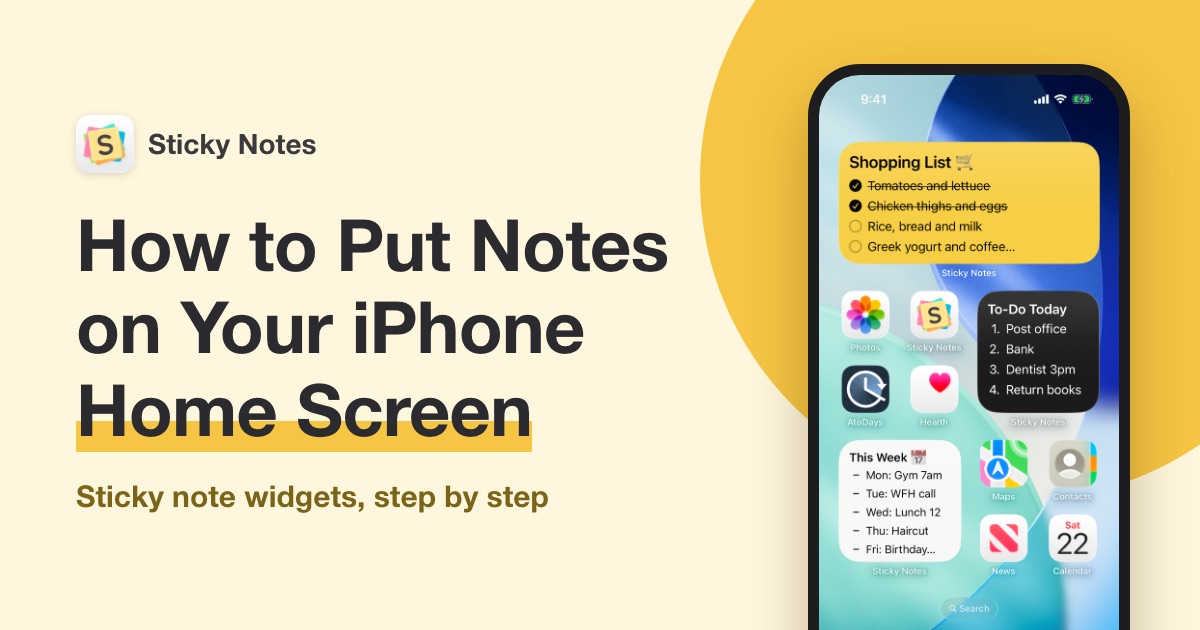
Put notes on your iPhone Home Screen, and you'll see them every time you pick up your phone. No need to open an app and look for them.
To put notes on your iPhone Home Screen, use the sticky note app "Sticky Notes." Sticky Notes is a free app that lets you put notes on your Home Screen, just like sticky notes. It only takes a few minutes, from installing the app to placing your first note.
What you can do with notes on your Home Screen
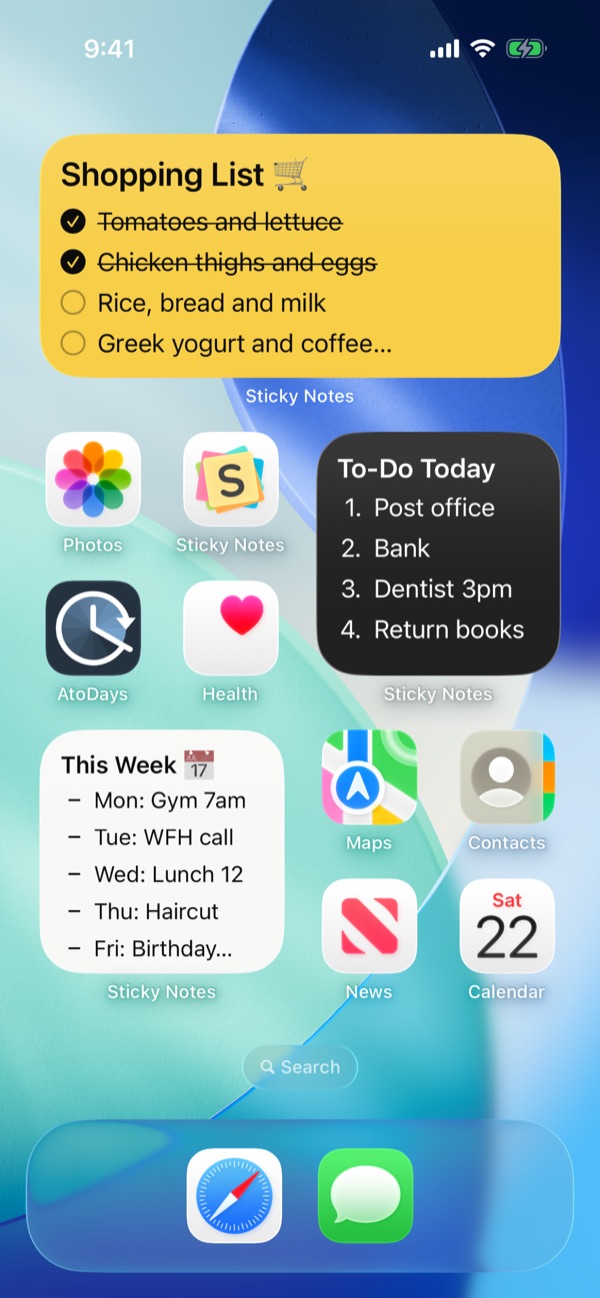
You see your Home Screen every time you use your iPhone. Here are some notes that are handy to keep there:
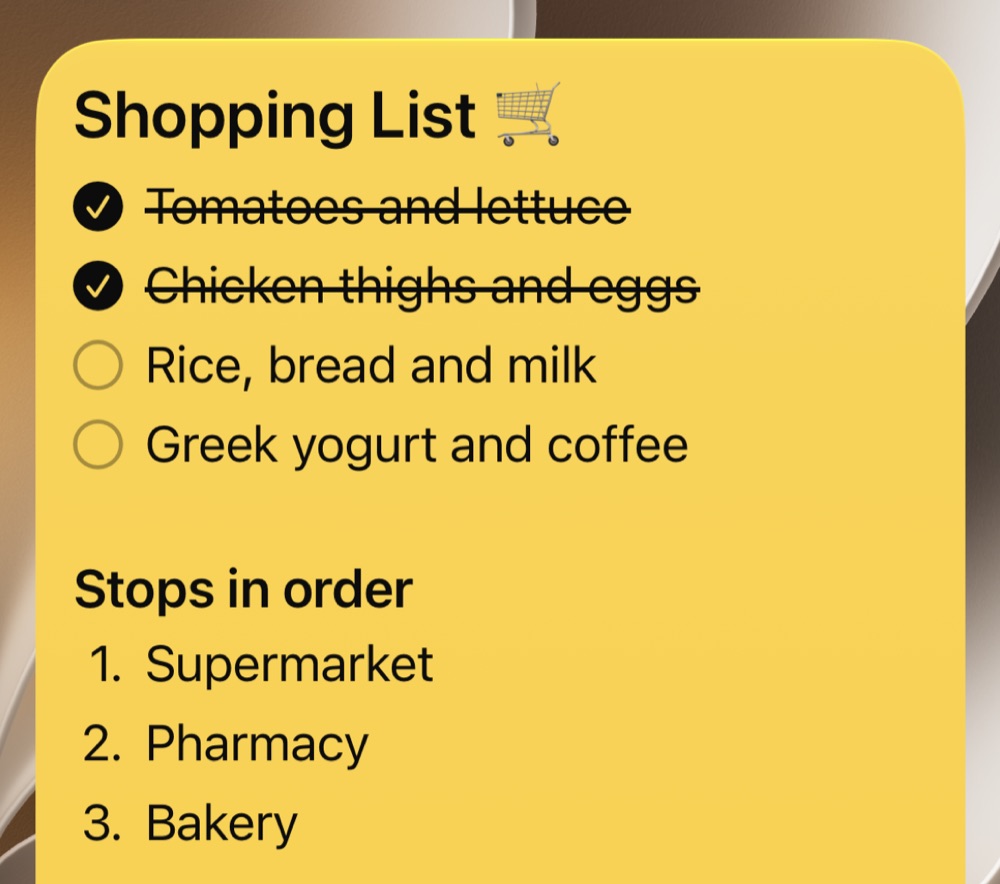
- Shopping list — Open your Home Screen at the store to see what to buy. Make it a checklist, and you can check items off right on the Home Screen
- To-do list — Keep today's to-dos on your Home Screen, and you'll be reminded every time you look at your iPhone
- Goals — Write goals like "Walk 30 minutes a day" or "Save $500 this month" where you'll always see them
- This week's plans — Keep your plans for each day and dates you don't want to forget in one place
How to put notes on your iPhone Home Screen
Step 1: Install the Sticky Notes app
Open the App Store with the link below and install the Sticky Notes app.
 Sticky NotesFree on the App Store
See how to install the app
- Tap here to open the Sticky Notes page on the App Store
- Tap "Get." If a confirmation appears, follow the instructions on the screen
- When the installation is done, tap "Open" to launch the app
On the App Store, the app appears as "Sticky Notes: Notepad Widget."
Step 2: Open the app and write a note
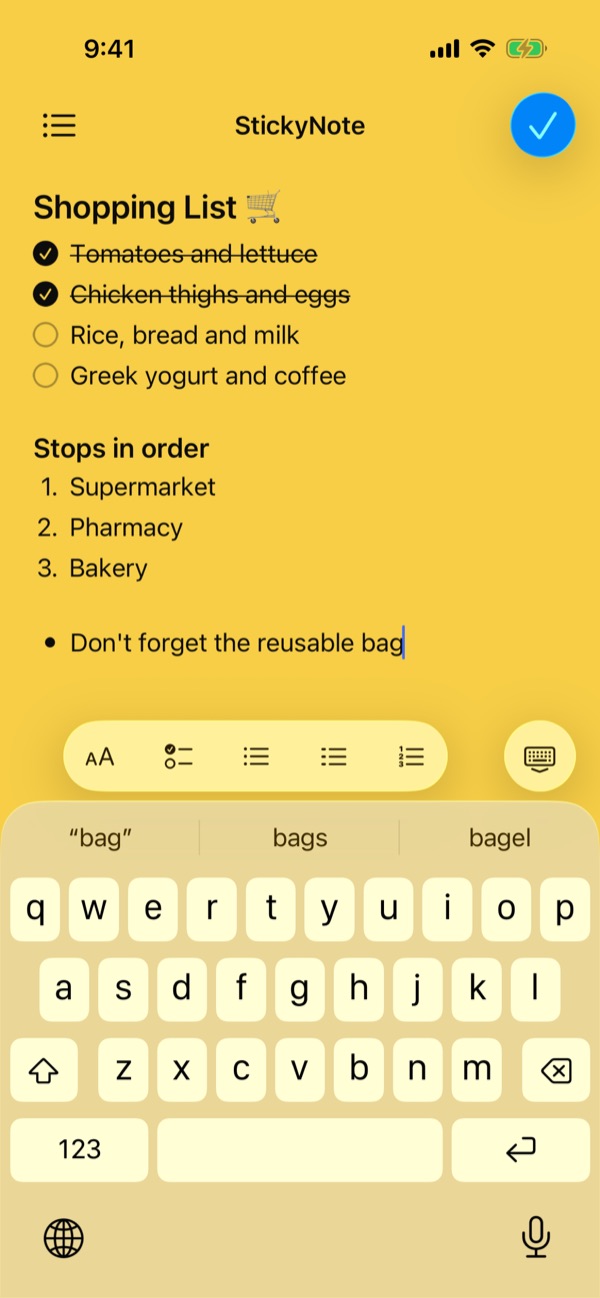
When you open Sticky Notes, a note is already created for you and appears on the screen. Write what you want to put on your Home Screen.
Step 3: Add the widget to your Home Screen
Your note goes on the Home Screen as a "widget."
- Touch and hold an empty area of the Home Screen until the apps jiggle
- Tap "Edit" in the top-left corner, then tap "Add Widget"
- Type "Sticky Notes" in the "Search Widgets" field, then tap Sticky Notes
- Swipe left or right to choose a widget size, then tap "Add Widget"
- Drag the widget to where you want it, then tap "Done" in the top-right corner
Your note now appears on your Home Screen.
See how to choose a widget size
Choose a size based on how long your note is. To change the size later, add the widget again.
| Size | Best for |
|---|---|
| Small | Short notes, like a one-line reminder or a goal |
| Medium | 3 to 5 to-dos or today's plans |
| Large | Longer lists, like a shopping list or a packing list |
| Extra Large (iOS 27 or later) | Long lists or a week's plans that fill a whole Home Screen page |
How to change the note shown on a widget
- Touch and hold the widget on your Home Screen, then tap "Edit Widget"
- Tap "Note to Display," then choose the note you want to show
Tips for getting more out of your notes
Make notes easier to read with checklists and headings
Checklists work well for to-do lists and shopping lists. When you write a note, tap the checklist button above the keyboard to add a checkbox at the start of the line. Once the note is on your Home Screen, just tap a checkbox to check it off, without opening the app.
For longer notes, tap the format button above the keyboard and choose "Heading" to break them into sections. You can also use bulleted and numbered lists.
Change the background color to tell notes apart
Open a note and tap the palette icon (Display Settings) in the top-right corner to change the background and font. You can choose from "Color Background," "Notebook Background," "Photo Background," and "Pattern Background."
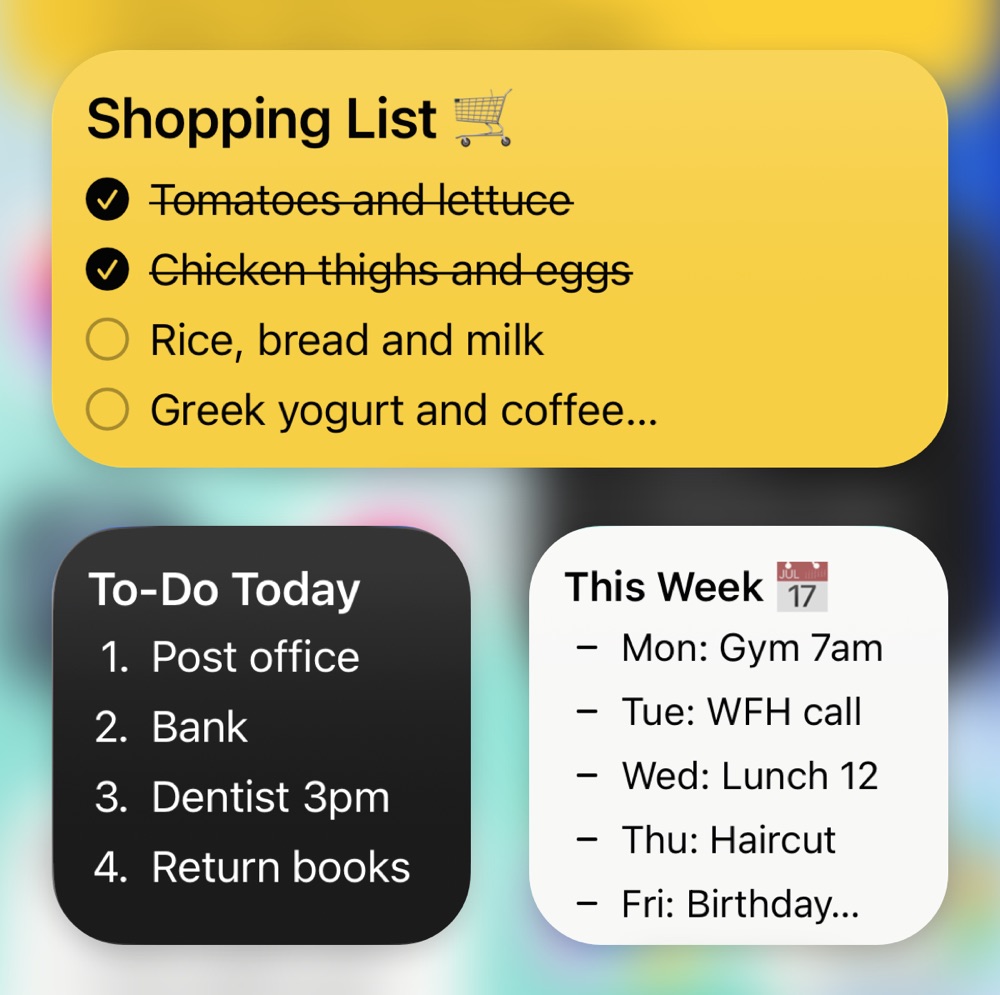
Pick a color for each purpose, like yellow for your shopping list and black for to-dos, and you'll know which note is which before you even read it.
Recommended ways to place your notes
- Put the notes you check every day near the top of the first page. Keep today's to-dos and your goals where you'll see them as soon as you open your Home Screen
- Use separate notes for different purposes. Change the note shown on each widget, and you can keep your shopping list, to-dos, and goals in separate widgets
- Use a Small widget for short notes. It's the size of four app icons, so it doesn't take up much space
Frequently asked questions
Is Sticky Notes free?
Yes, it's free to use. With a paid plan, you can remove ads and get more features, such as using your own photos as backgrounds.
If I edit a note, does it change on my Home Screen too?
Yes. When you edit a note in the app, the note on your Home Screen updates too. You don't need to add it again.
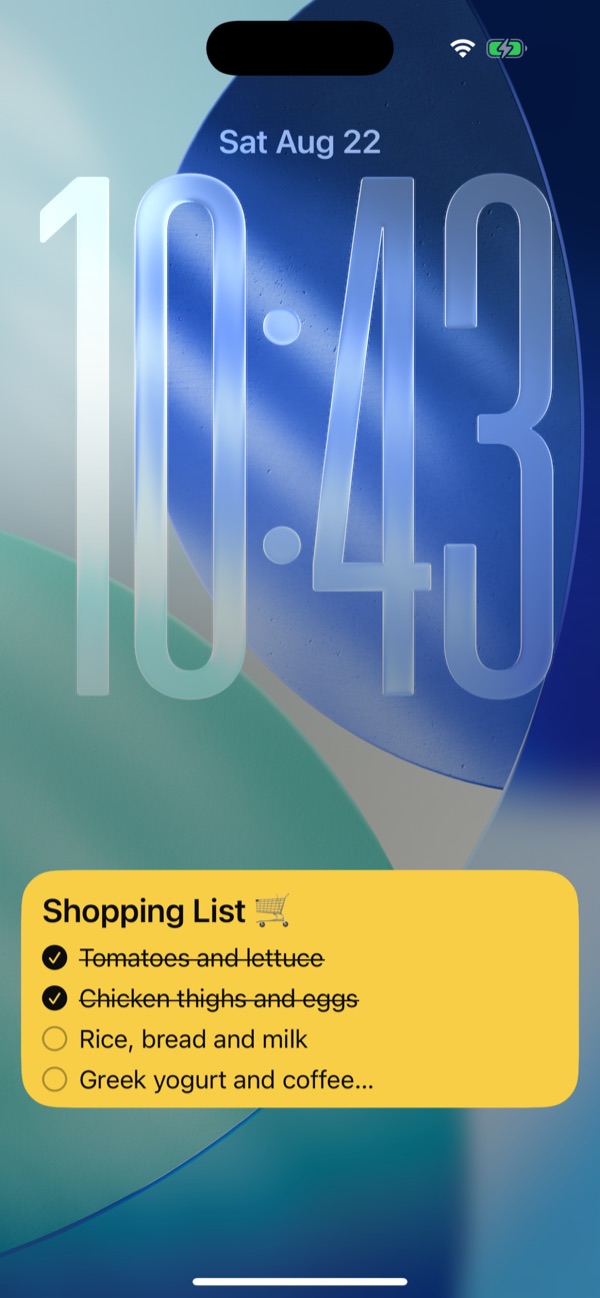
Can I show a note on my Lock Screen too?
Yes. You can add it as a Lock Screen widget, or choose "Show on Lock Screen" from the note's menu to show it large on your Lock Screen while you shop.