
How to Set iPhone Alarms for Specific Days | Different Times by Day
Yobirin An alarm app that rings at different times on different days
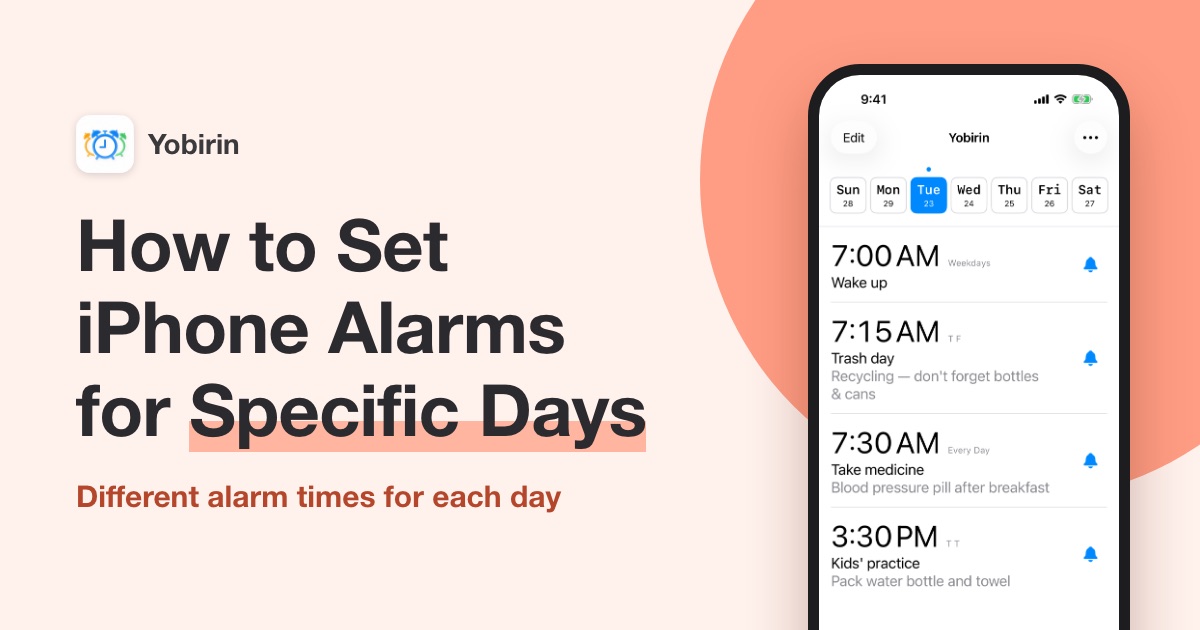
Set your iPhone alarms for specific days, and they'll ring automatically every week, like 7:00 AM on weekdays and 9:00 AM on weekends. No need to reset tomorrow's alarm every night.
To set iPhone alarms for specific days, use the alarm app "Yobirin." Yobirin is a free alarm app that lets you set alarms for each day of the week, each at its own time. It only takes a few minutes, from installing the app to setting your first alarm.
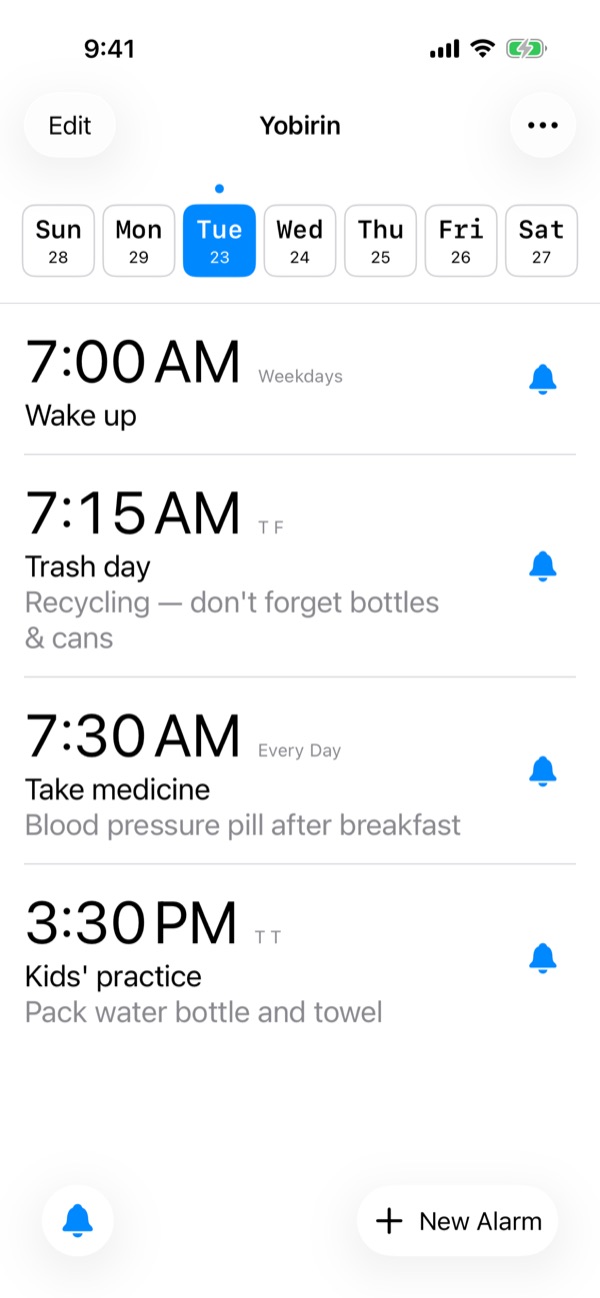
What you can do with alarms for specific days
- Wake up at different times on weekdays and weekends — Set it once, and it rings the same way every week. No need to reset your alarm for Monday morning on Sunday night
- Get reminders for trash day or after-school activities — Choose the days for each alarm, like "Trash day" on Tuesdays and Fridays and "Kids' practice" on Tuesdays and Thursdays, so you don't forget
- Set wake-up times for your work schedule — If your start time depends on the day of the week, create an alarm for each time, and it rings automatically every week
- Turn off an alarm just for your day off — On a holiday or a day off, you can stop an alarm for that day only. It turns back on automatically the next week
How to set iPhone alarms for specific days
Step 1: Install the Yobirin app
Open the App Store with the link below and install the Yobirin app.

See how to install the app
- Tap here to open the Yobirin page on the App Store
- Tap "Get." If a confirmation appears, follow the instructions on the screen
- When the installation is done, tap "Open" to launch the app
On the App Store, the app appears as "Repeating Alarm Clock: Weekly."
Step 2: Open the app and allow alarms
When you open Yobirin, your alarm list appears with today's tab selected.
The first time you open it, you'll be asked whether to allow the app to schedule alarms. The app needs this to sound your alarms, so tap "Allow."
Step 3: Tap "New Alarm"
Tap "New Alarm" in the bottom-right corner to open the screen for adding an alarm.

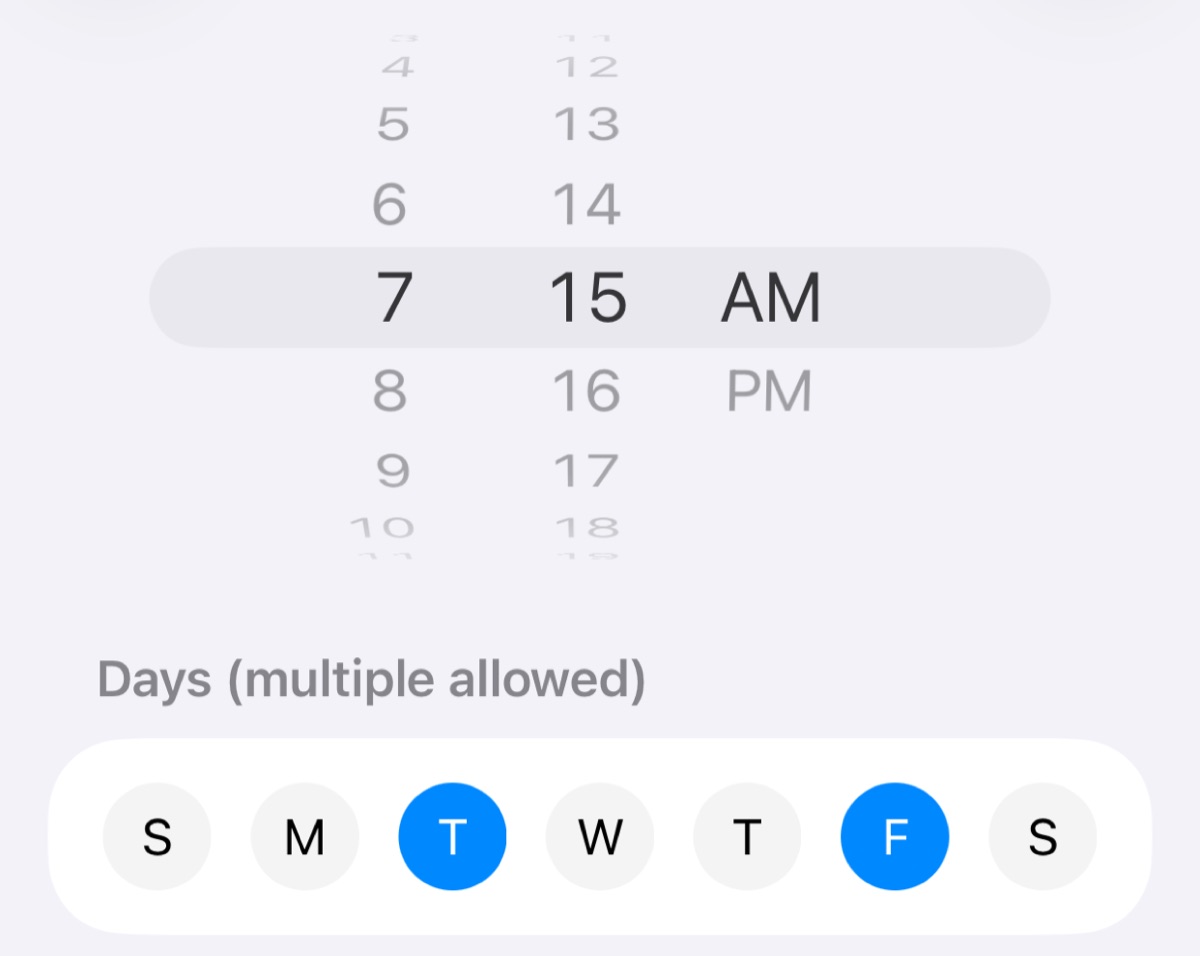
Step 4: Choose a time and days, then save
- Turn the wheels to set the alarm time
- Under "Days (multiple allowed)," tap the days you want the alarm to ring. You can choose as many as you like
- Tap the checkmark button in the top-right corner to save
Your alarm now rings every week on the days you chose.
See how to set a label, memo, sound, and snooze
On the screen for adding an alarm, you can also set the following. Your alarm rings even if you leave them as they are.
- Label — The alarm's name. It's also shown when the alarm goes off
- Memo — A note you can see in the alarm list, like "Don't forget bottles and cans"
- Sound — The alarm sound. Tap the play button to hear a sound before you choose it
- Snooze — How long to wait before the alarm rings again. Choose anywhere from 1 minute to 1 hour, or turn it off
Set different times for different days
To ring at different times on different days, create an alarm for each time. For example, create these two alarms, and they'll ring at 7:00 AM on weekdays and 9:00 AM on weekends.
| Time | Days to choose |
|---|---|
| 7:00 AM | Mon, Tue, Wed, Thu, Fri |
| 9:00 AM | Sat, Sun |
Swipe left or right on the day tabs at the top of the screen to see only the alarms that ring on that day. The Monday tab shows the 7:00 AM alarm, and the Saturday tab shows the 9:00 AM alarm, so you can check your settings at a glance.
Tips for getting more out of Yobirin
Skip an alarm on your day off
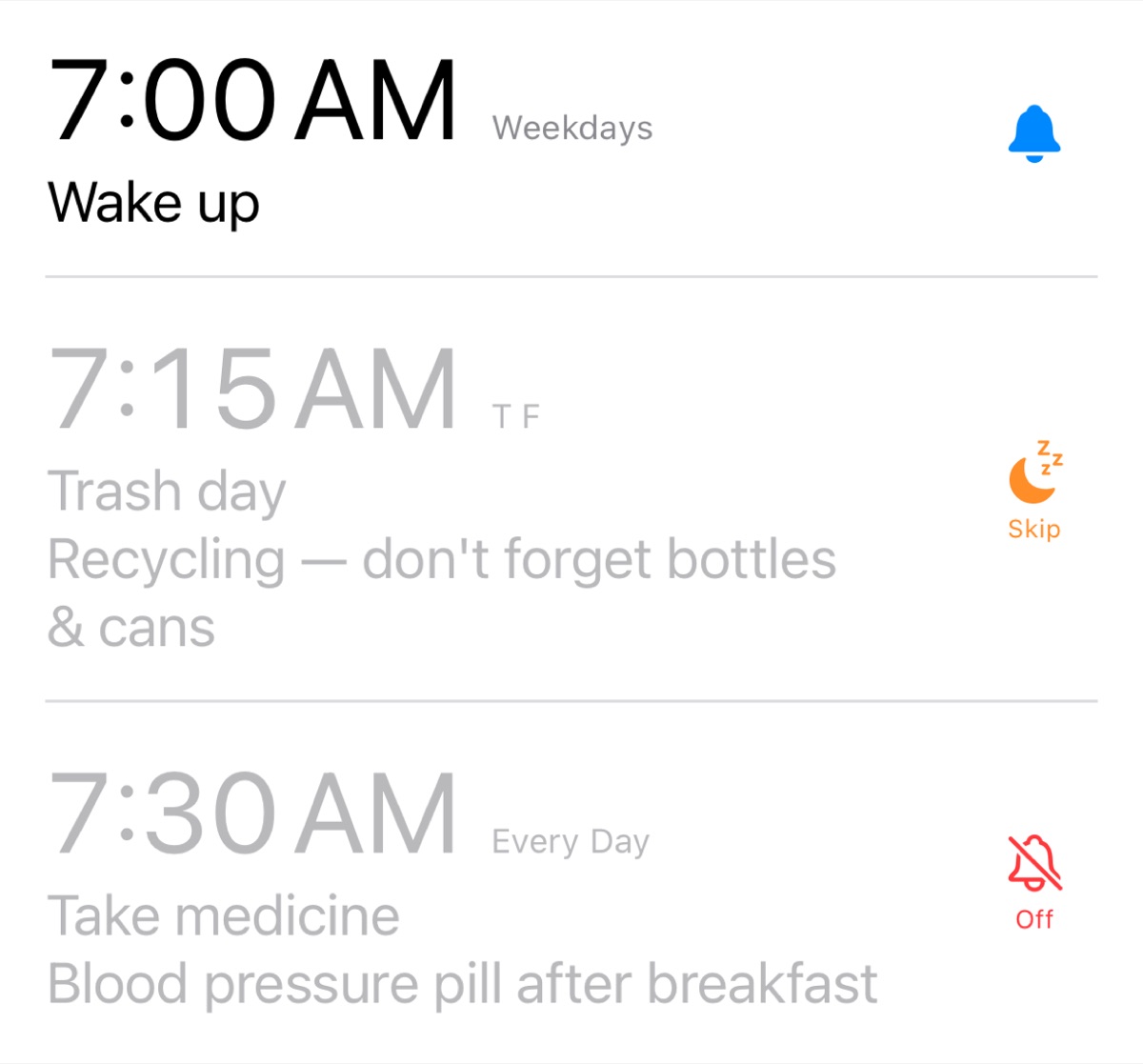
On a holiday or a day off, use "Skip" to stop an alarm for that day only. Open the tab for that day of the week, then tap the button on the right of the alarm. Each tap switches it between On, Skip, and Off, in that order.
- On (bell icon) — The alarm rings at the time you set
- Skip (moon icon) — The alarm doesn't ring the next time that day comes around. It turns back on automatically the following week
- Off (bell with a slash) — The alarm doesn't ring until you turn it back on
A skipped alarm turns back on by itself, so you won't forget to turn it back on and miss it the next week.
Stop all of today's alarms at once
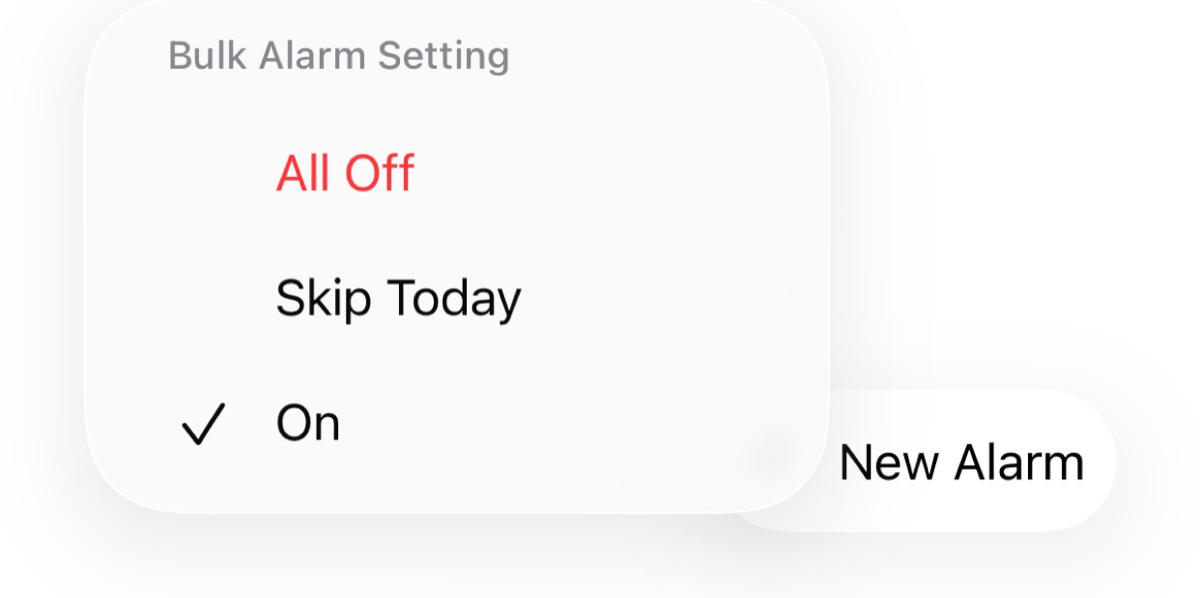
On a sudden day off, tap the button in the bottom-left corner and choose "Skip Today" to stop all of today's alarms at once. Your alarms go back to normal the next day.
To stop your alarms for a while, like when you're traveling, choose "All Off." To go back, choose "On." Either way, the settings for each alarm stay as they are.
Frequently asked questions
Is Yobirin free?
Yes, it's free to use. With a paid plan, you can remove ads and get more features, such as extra themes to change the app's look.
Can alarms turn off automatically on holidays?
No. The app doesn't detect holidays and turn alarms off automatically. Before the holiday, open that day's tab and set the alarm to "Skip." It won't ring that day and turns back on automatically the following week. On the day itself, you can stop all of that day's alarms with "Skip Today."
Do alarms ring when the app is closed?
Yes. Yobirin sounds alarms using the same system as the iPhone's built-in alarms, so they ring at the time you set even when the app is closed.
Can I use it on Apple Watch?
Yes. On your Apple Watch, you can check your alarms for each day and switch them between On, Skip, and Off. There are also widgets that show today's alarms or your next alarm on your iPhone Home Screen and Lock Screen. For details, see the Yobirin app page.